google review qr code
Google Review QR Code: Make One and Where to Put It
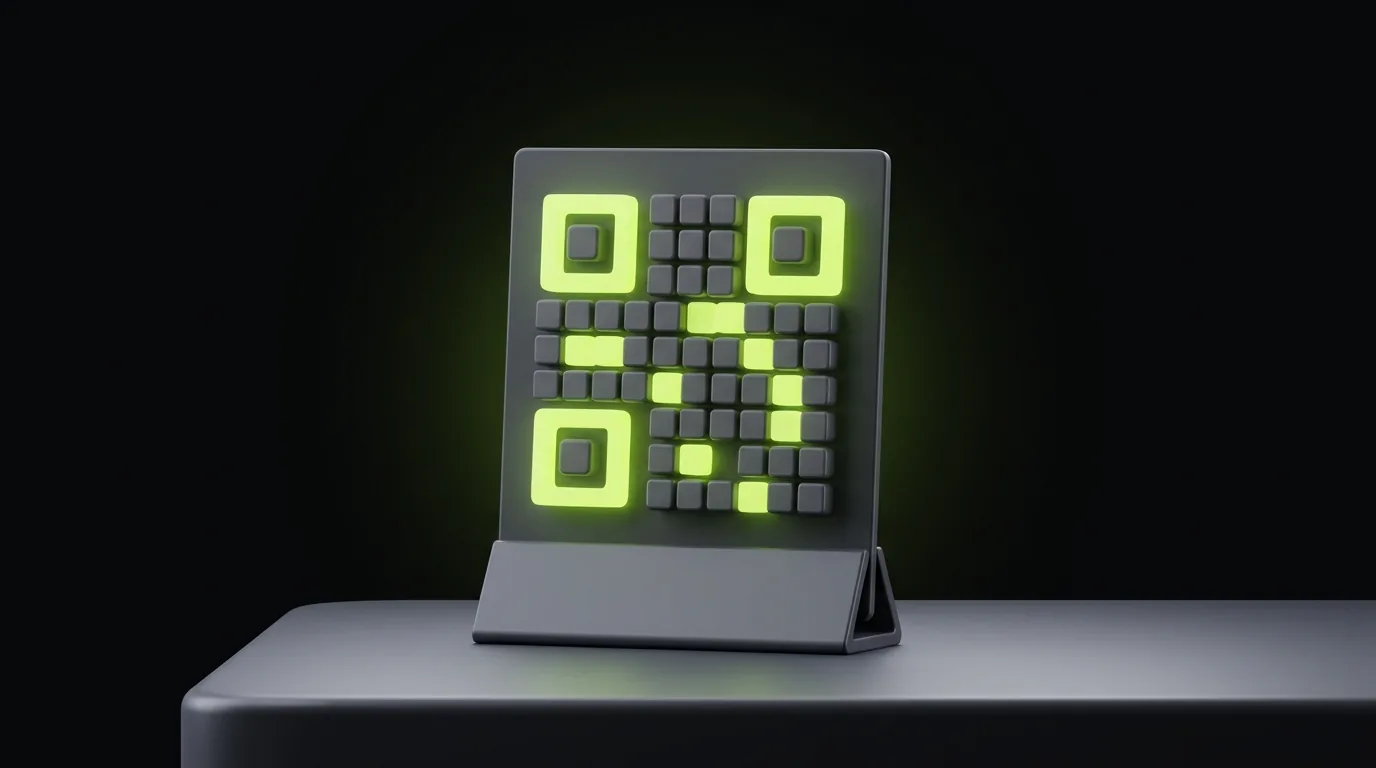
A Google review QR code is a printed square that, when a customer points their phone camera at it, opens your business's "write a review" box on Google straight away. You make one by copying your review link from your Google Business Profile and turning that link into a QR code. Then you print it and put it where people naturally stop: the till, the receipt, the table, the door. Here's how to do each step properly, plus the rules you can't ignore.
Step 1: Get your review link from Google
Google now hands you the link itself. According to Google's help page on review links and QR codes, you open your Business Profile, click Read reviews, then Get more reviews. From there you can copy the link with the copy icon, or right-click the QR code Google shows you and choose Save image as.
One catch: Google says review QR codes can currently only be generated on a computer browser, not on a phone. The link works anywhere, though. If you're on your phone, copy the link and make the code yourself.
Another way in is the share link for your place on Google Maps (the short maps.app.goo.gl kind). That's handy if you aren't the profile owner but are setting things up for someone who is.
Don't try to type or build the link by hand. Copy it. A single wrong character sends people to the wrong place, and you won't know until someone tells you.
Step 2: Turn the link into a QR code that lasts
If Google's own QR image is good enough for you, use it. If you want a bigger file for print, a vector file for a sign maker, or your logo in the middle, use a generator. In our QR Code Generator you can paste the review link, or paste a Google Maps listing link and it builds a code that opens the "write a review" box.
A few settings matter more than colour or style:
- Static, not dynamic. A static code holds your link directly. It never expires and doesn't depend on anyone's server staying up. The trade-off is no scan counts. Some "free" generators make dynamic codes that redirect through their site and stop working when a trial ends. Check before you print 500 table cards.
- Error correction (damage tolerance). QR codes have four levels. Denso Wave, the company that invented the QR code, explains that higher levels recover more of a dirty or damaged code but make the pattern denser, and that level M (about 15%) is the most commonly chosen. Go higher for counters that get wiped, scuffed or splashed, and if you put a logo in the middle, since the logo covers part of the code.
- Leave a blank margin. Denso Wave's guidance says a QR code needs a clear margin four modules wide on every side (a module is one of the little squares). Don't let a designer crop it tight or set it against a busy photo.
- Dark on light. Black or a dark colour on white scans most reliably. Light codes on dark backgrounds trip up some phone cameras.
- Right file for the job. A large PNG is fine for a home printer. SVG is better for a print shop or sign maker, because it scales to any size without going blurry.
Step 3: Test it like a customer would
Before you print a batch, print one. Then scan it with at least two phones, ideally one iPhone and one Android, from the distance a customer will actually stand. Check that it opens the review box for the right business, not a competitor with a similar name or an old location.
Also test it logged out. Google notes that customers need a Google Account to post a review, though they can make one with a non-Gmail address. So someone without an account will hit a sign-in screen first. That's normal, not a broken code.
There's no official minimum print size, so size by testing. A code on a receipt is scanned from a few centimetres away. A code in a window is scanned from across the sidewalk and needs to be much bigger.
Where to put your Google review QR code in the shop
The best spot is wherever a happy customer has a free moment and a phone in hand. Google's own suggestions include receipts, thank-you emails, the end of a chat conversation and a printed code in your store. Here's how that plays out in real places:
At the till. A small stand-up card next to the card reader. People wait there for a few seconds anyway.
On the receipt or invoice. Printed or emailed. For service businesses (plumbers, cleaners, tutors), this is often the strongest spot, because it arrives right after the job is done.
On tables. Cafés and restaurants can put it on table tents or the bill folder. Keep it away from the menu QR so people don't scan the wrong one.
In waiting areas. Salons, clinics and auto shops have people sitting with their phones out. A framed card at eye level works.
On packaging and bag stuffers. For takeaway and retail, a sticker on the bag catches people at home, when they've got time.
For realtors and mobile businesses. A business card, a leave-behind folder at closing, or a magnet for a service van.
Add one line of plain text so people know what it does. For example: "Enjoyed your visit? Scan to leave us a Google review." A code with no label gets ignored, because nobody scans a mystery square.
The rules: what you can and can't do when asking
This is where well-meaning owners get into trouble. Google's contributed content policy says businesses may ask for genuine reviews, but must not:
- offer payment, discounts or free goods or services in exchange for posting, changing or removing a review
- discourage negative reviews, or selectively ask only happy customers
- require or pressure customers to leave a review while they're on the premises
So "10% off if you leave a 5-star review" is out. So is a sign that says "Happy? Review us on Google. Unhappy? Talk to us," because that routes only the happy people to Google. Ask everyone the same way.
The law also has a say. In the US, the Federal Trade Commission's rule on fake reviews bans offering incentives tied to a review expressing a particular sentiment, and bans using threats or intimidation to stop or remove negative reviews. In Canada, the Competition Bureau has warned that employees who review their employer must disclose the connection, even when their opinion is honest, and that a business that writes or allows misleading reviews could be liable under the Competition Act. Practical upshot: don't ask staff, friends or family to fill up your page. If you're unsure about a promotion, ask a lawyer before you run it.
Limits and honest caveats
A QR code won't make people leave reviews. It just removes the hunting. The ask still matters, and a friendly "we'd really appreciate a review" from a person beats any sign.
Static codes give you no scan statistics. If you need to know how many people scanned, you'd need a dynamic code service, and you'd depend on that service staying in business and keeping your code live. Many small shops just watch the review count on their profile instead.
If your business moves, merges listings or gets a new profile, the old review link may stop pointing where you want. Rescan your printed codes once in a while, especially after any profile change.
Google can change its review link format or menu names. If the steps above look different, use Google's help page as the current word.
Frequently asked questions
Can I make a Google review QR code on my phone?
Not inside Google's own tool. Google says review QR codes can currently only be generated on a computer browser. You can still copy your review link on a phone and turn it into a QR code with a generator, then test it by scanning with two different phones.
Do Google review QR codes expire?
A static QR code doesn't expire, because the link is stored inside the pattern itself. Codes that do stop working are usually dynamic codes that redirect through a generator's server, which can end when a trial or subscription lapses. The link can still break if your Business Profile changes.
Can I give customers a discount for leaving a Google review?
No. Google's policy prohibits offering payment, discounts or free goods or services in exchange for posting, changing or removing a review. In the US, the FTC also bans incentives tied to a review expressing a particular sentiment. You can ask every customer for an honest review, with nothing attached.
Why does my review QR code ask people to sign in?
Posting a Google review requires a Google Account, so customers who aren't signed in see a sign-in screen first. That's expected, not a broken code. They can create an account with a non-Gmail email address if they don't have one.
Sources
- Google Business Profile Help: Create a Google link or QR code to request reviews
- Google Business Profile Help: Tips to get more Google reviews
- Google Maps user contributed content policy
- Denso Wave QRcode.com: Error correction feature
- Denso Wave QRcode.com: Code size and margin
- US Federal Trade Commission: Final rule banning fake reviews and testimonials
- Competition Bureau Canada: Online reviews posted by employees, businesses could be liable
If you want a print-ready file, the free QR Code Generator takes a Google Maps listing link and makes a code that opens the "write a review" box. You can download it as PNG at 512, 1024 or 2048 px or as SVG, pick from four damage-tolerance levels and add a logo. It's a static code, so it never expires, and it doesn't track scans.
QR Code Generator
Paste a link and download a QR code as PNG or SVG. Codes never expire. Has a Google-review mode for your storefront.
Make a QR code →